This week, the bloggers united to vote for how to add a pin it button to your blog!
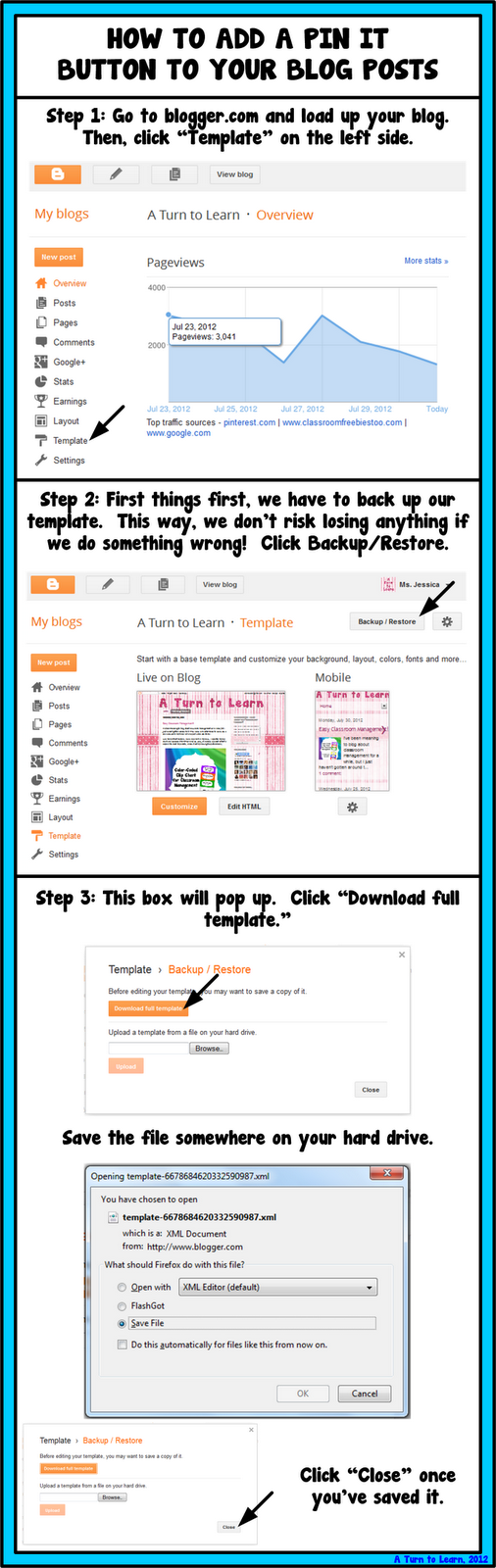
I initially found this tutorial at Mayura4Ever, which has some amazing tutorials for bloggers. I kept the same steps, I just added pictures to make it nice and easy to follow!
I have to say, I was really surprised by this one coming up first in the poll… I have been so hesitant about putting up poll options that are specific to bloggers because I didn’t think many people would vote for them. Boy was I wrong! I’ll be sure to add more blogger tutorials to the poll in the future!
Now… here is the tutorial!
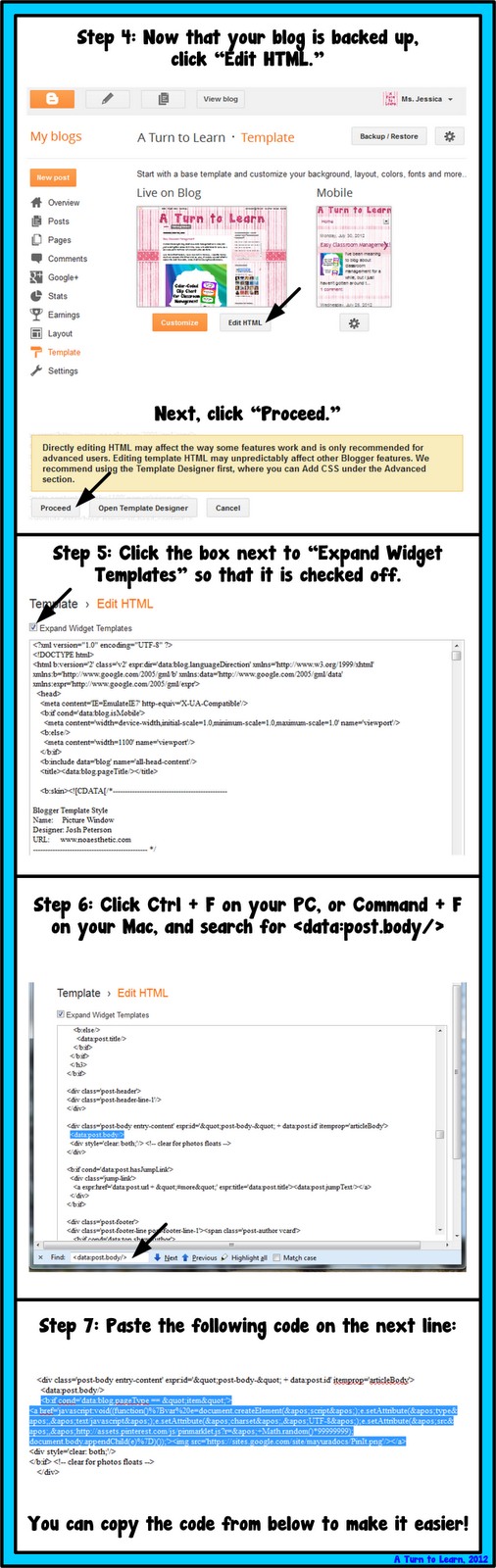
<b:if cond=’data:blog.pageType == “item”‘>
<a href=’javascript:void((function()%7Bvar%20e=document.createElement('script');e.setAttribute('type','text/javascript');e.setAttribute('charset','UTF-8');e.setAttribute('src','http://assets.pinterest.com/js/pinmarklet.js?r='+Math.random()*99999999);document.body.appendChild(e)%7D)());’><img src=’https://sites.google.com/site/mayuradocs/PinIt.png’/></a>
</b:if>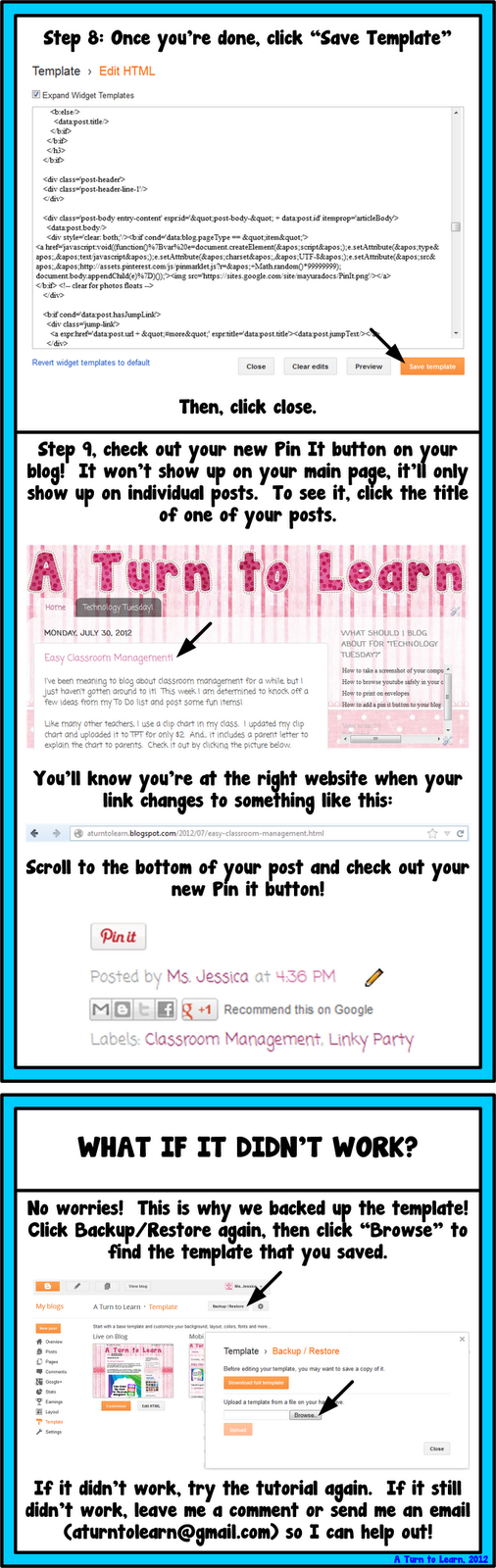
<a href=’javascript:void((function()%7Bvar%20e=document.createElement('script');e.setAttribute('type','text/javascript');e.setAttribute('charset','UTF-8');e.setAttribute('src','http://assets.pinterest.com/js/pinmarklet.js?r='+Math.random()*99999999);document.body.appendChild(e)%7D)());’><img src=’https://sites.google.com/site/mayuradocs/PinIt.png’/></a>
</b:if>
Enjoy your new pin it button!


I love your tutorials! Sometimes I learn things that I didn't even know I needed. 🙂 My blog is through wordpress. Could you include wordpress.com in your blog tutorials? Thanks.
I haven't used WordPress before but I'll sign up for an account so that I can play around with it and try to figure it out! I'll update this post when I do!
It worked but it shows the coding above. How do I get rid of this? eshepherd79@gmail.com
You mean it added the button and the coding? That's really odd! Let me play around with it and double check that I copied the right code into the box!
I just adjusted the coding so it should work now!
I really love your tutorials! There is something I can't figure out that I'd love to see a tutorial on. It seems like there should be a way to save a powerpoint slide as a transparent PNG. When I adjust the background transparency to 100% and save as a PNG it still has the white box. Do you know how to do that?
Mercedes
Surfing to Success
I don't know off the top of my head, but someone else had the same problem. I'll play around with it and see if I can figure it out!
Sorry for a separate reply, I just searched the problem and it seems that saving it as a PNG via "Save As>PNG" doesn't support transparency, although there is a workaround!
Drag a box around the items from your slide that you want in the transparent image (the whole slide if you want). Right click the objects selected, and choose "Save As Picture," and save it as a PNG.
I just tried it and it worked perfect! It only saved the shapes/text I selected without any of the slide's white background! Let me know if that helps!
Thank you so much! I have so many things I've made but couldn't share. I'm so excited!!!
Thanks for linking up to my Tips for newbies!
No problem! Thanks for letting me know about it!
Hi Jessica,
Lovely tutorial with images on dear 🙂 Very descriptive in that way and easy to follow too. You made it, huh? 😉
Thanks for the mention in your post too 🙂
Cheers…
Thanks! You posted such a fabulous tutorial to begin with… I definitely couldn't have figured this out without your original post!
I love this tutorial! Unfortunately, I've tried it twice and I can't seem to get it to work. I've pasted the code where you said to, but nothing shows up on my blog- no code, no button. I'm wondering if maybe I'm just not seeing it, but others can? I don't know what's wrong! Help, please! 🙂
Bee
Bee Teaches
I just checked your blog (and started following!) and it's there! You have to click onto the individual post to see it. Look at step 9 to see wher to click. Let me know if you see it!
I don't see it… weird. But I totally believe you and if it's there, then hooray! haha I wonder why I can't see it though. Sometimes computers totally boggle my mind… and I think I'm pretty tech savvy. Thanks for your help!!!! I love all of your tips 🙂
It's there, it's at the bottom of the post just before the comments!
OMG! You're my hero!!!!!! It worked!!! YAY! I have been wanting to do this forever and could never get it. Now, can ou do the same tutorial for a facebook button?!
Thanks again!
Greg
Smedley's Smorgasboard of Kindergarten
Awesome! I'll add the facebook button to the poll eventually, but in the meantime, check out Mayura's post to do it!
http://www.mayura4ever.com/2011/05/add-facebook-like-button-for-blogger.html
I am so glad I stumbled across your blog! I'm your newest follower 🙂 Thank you for all of these Tech Tuesdays…I've been learning so much!
Anita
Mrs. Bremer’s Kindergarten
I'm glad you like them! I'm going to come check out your blog as well!
Wow, your tutorial is awesome!! Thanks for linking up! Now you've given me one more thing to try to add as soon as I get home tonight! Your directions are so clear and easy to follow!!
🙂 Nancy
🙂 That's the awesome thing about blogging… there's always more that you can do!
Thank you! I'm your newest follower!
Diane
Fifth in the Middle
I've tried twice – still can't get it to work. I've restored! Any other suggestions?
Thank you so much for the tutorial! I just started my blog recently and I love following this one! I know you are super busy so thank you for helping us newbies!
website design