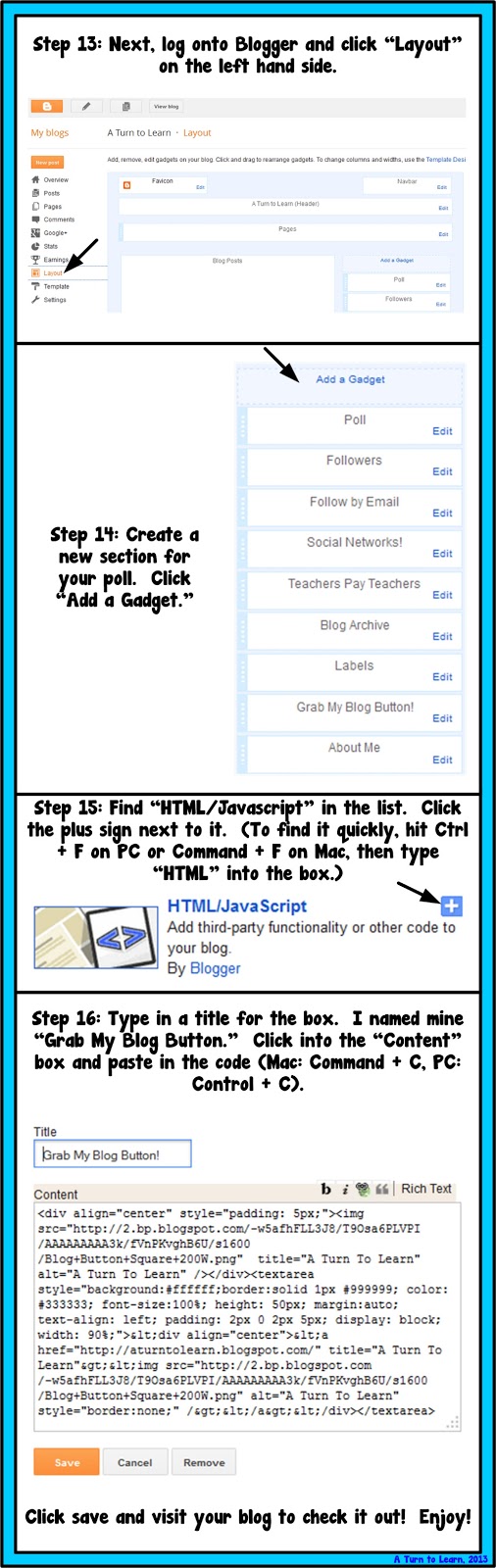
Oh my… the bloggers have united again! This week’s everyone voted for me to write up a tutorial for how to make a “grab my button” code for your blog!
For this tutorial, we’re going to use this awesome website:
This website does all of the HTML work for you… and you can even pick custom colors for your code box and text! All you have to do is copy and paste the completed code to your blog! Now… onto the tutorial!
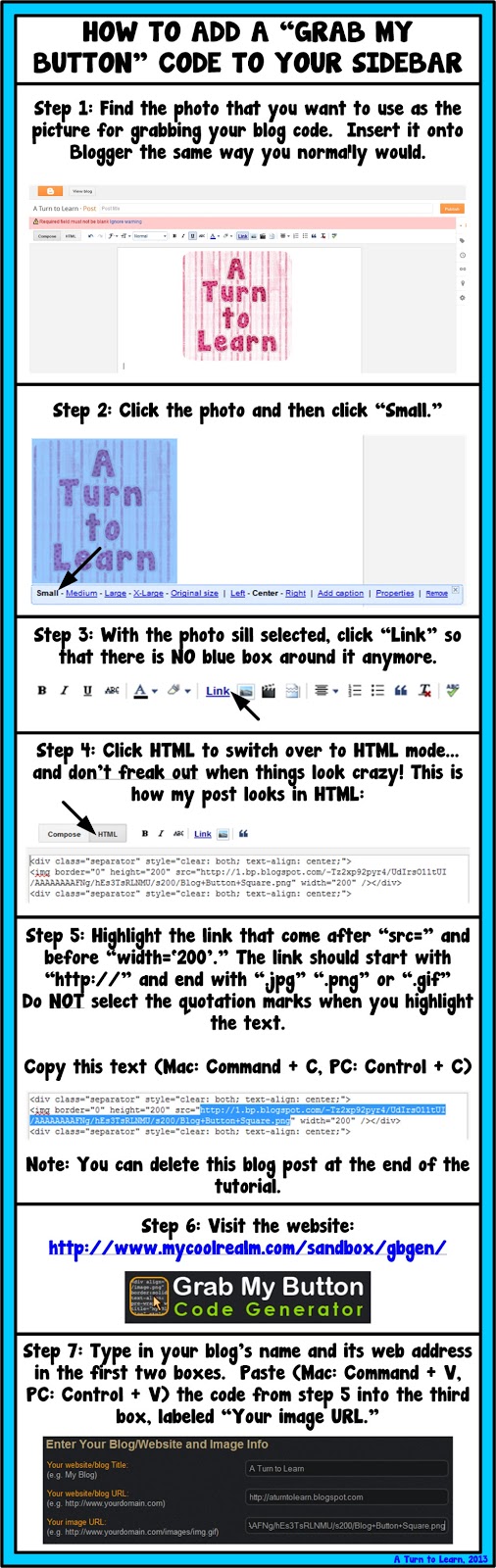
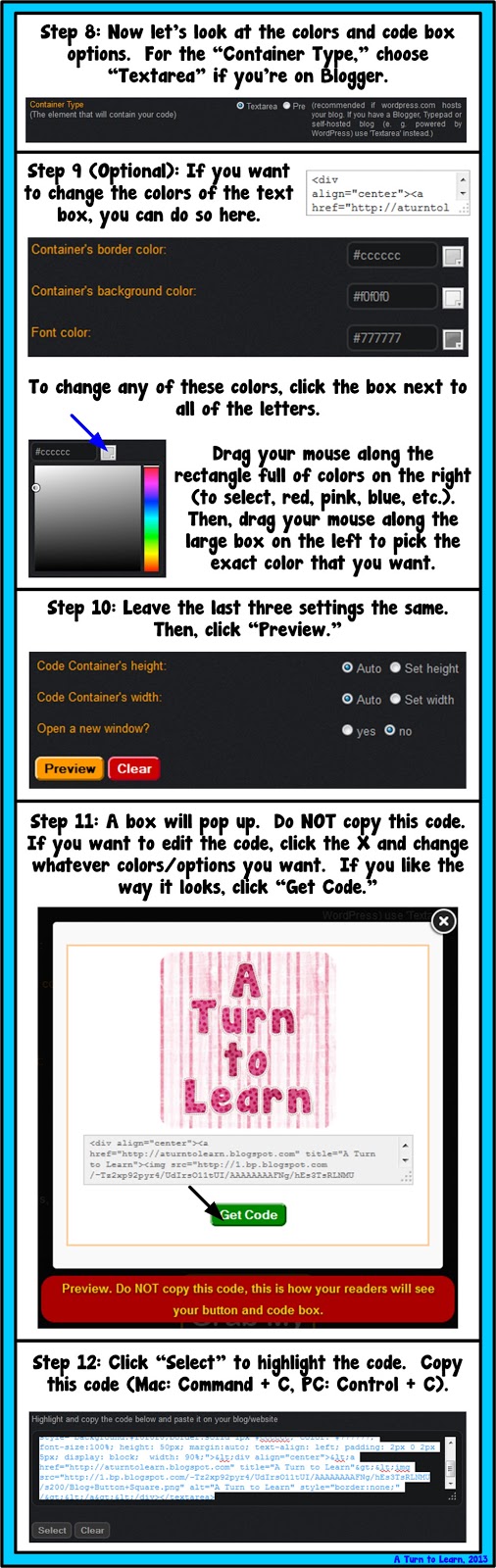
Happy blogging!



Thank you so much! You made this very easy. I have been trying to add this to my blog! I love your blog. You have help me with so many things!
• Grade School Suzy
Hello. I also just discovered the My Cool Realm code generator web site. I emailed Juan just this week to thank him. Now I want to thank you, too, for the directions for creating the button, etc. I made a button, but it is too small so now I can redo it – thanks to your directions. You're the best, Susan K.
http://www.pinkwatermelons.blogspot.com/
Thank you so much! I tried to do this all night using several different tutorials, and yours was the first one that worked! Thank you!
http://www.yayforprek.blogspot.com
Thank you so much! I loved your step by step tutorial..so helpful!
Kristin
Fifth Grade Ramblings
Just came across this…thank you SO much! This was very helpful, and now my blog has a button! 🙂
Sarah
Miss White's Classroom
Thank you for this post! I have been avoiding trying to make a button as it seemed so overwhelming and I didn't know where to go! Your tutorial was so easy to follow and I succeeded 🙂
Chanzie
http://meanwhoyoare.blogspot.com
Thank you so much for the easy tutorial…I cracked my head for two days and couldn't do it. I was so frustrated until I found this. This is super helpful.
Thanks a ton.
I've been trying for WEEKS to get the text into the box!!! Thank you SO MUCH for this easy to understand tutorial!!! 😀
This is an amazing tutorial. Thank you!! Wouldnt have been able to do it without your help! xo
Thank you so much for this tutorial! I was struggling big time to change my button! This helped me avoid the Imageshack part so it made it so much easier! Forever thankful!
Pam
Rockin Resources
Rockin Resources Blog
Thank you soooo much! It was so easy to follow and I got my code in no time… You rock!
happymedley.blogspot.com
Thank you so much!! I have been trying to do this for months!!! Easy instruction for us less-tech savy peeps!
🙂
Thank you so much! Your step by step tutorial is so easy to follow. I spent three hours last night following other directions and gave up. This took less than 30 minutes. You rock! Now if you can tell me why I can't get my picture to attach to my name I'll be in heaven.
Thank You, Thank You! I have tried a dozen times to get a blog button back on my site and all the old ways failed! Thank you for this painless tutorial! It worked in two minutes!
After trying a dozen ways, I think I finally figured it out! Many thanks to you and your tutorial!
it's the only tutorial it really worked!! thank you soooooo much!!!
i found your blog and the generator at the same time–had them simultaneously opened in different tabs and laughed when i saw you recommended the generator i already had opened. however, when i followed the directions exactly, even though i made the picture small, it ended up too big to fit on the page. i don't know if they changed something on the generator, but i had to include the width and height part of the html code too from the blogger post with the image over to the generator. then it worked just fine. just an FYI… thanks for posting this!!!
I've been trying to figure this out for the longest time! I am thankful that I came across your blog!! Thank you SOOO much!
Jessica, I just did this to fix my button and it worked beautifully! Thanks!
~Heather
The Meek Moose
YES! Thank you! Finally one that I can understand and it worked beautifully! Thank you for the screen shots! I am pinning this out 🙂 Patti at Primary Wonderland